| CPSC 329 |
Software Development |
Fall 2026 |
CPSC 329 Lab 7: JavaFX I
This lab introduces elements of JavaFX.
Collaboration and AI
Labs are for learning and practice — you may help and be
helped by others when it comes to figuring out what to do, but in
the end you need to understand and be able to do the things for
yourself.
This lab can be done individually or in pairs. If you work
together, use pair programming rather than splitting things up and
working in parallel.
You may not use AI to figure out what to do or to do the task for
you.
Due Date, Deliverables, and Handin
due Fri 10/16 at the start of class
To hand in your work:
-
If you worked with someone else, add @author tags
in the main class comment for your program naming both partners.
Only one needs to hand in the lab.
-
Copy your entire ~/cs329/dev/lab7 directory into
your handin directory. Make sure you end up with lab7r
(directly) inside your handin directory and that it contains
a src directory (with your code) — you shouldn't
have a bunch of stuff loose in the top level of your handin
directory or have folders nested deeper.
Preliminaries
JavaFX Reference
Part of the goal of these exercises is to gain experience
navigating available information sources to find what you need to know
to work with JavaFX and its many classes. Look over the following
guide to see what it contains, then refer back when you need specifics
about something.
- JavaFX reference — gives a
brief overview of GUI programming and JavaFX, with links to sources
of more information
References to "the text" below refer to Introduction to
Programming Using Java (D. Eck) — jump straight
to Chapter
6.
Provided Code
You have been provided with a skeleton of a basic JavaFX
application as a starting point, along with images of dice to use.
Setup
This lab requires JavaFX so you will need to have done the Eclipse
setup from lab 6. If you haven't done that, or if you run into
compilation and/or runtime errors working on this lab, go back to lab
6 for those instructions.
Create an Eclipse project and share it to a local Git repository:
-
Create a new Eclipse project named lab7. Remember
that the project directory should end up
under ~/cs329/dev, not in Eclipse's workspace.
-
Import all of the Java files
from /classes/cs329/lab7 into your project. Make sure
to preserve the directory structure with Java files in
the src folder and images in subdirectories
of images.
-
Confirm that the program runs correctly. If there are
JavaFX errors, check that you got things set up correctly in
the Setup steps above.
-
Create a new (local) Git repository, create/set up
.gitignore, and do the initial commit. Include a meaningful
commit message.
Dice Roller
The task is to create a JavaFX application
called DiceRoller which acts like a dice roller — it displays
the current values of five dice and the user can click a button or use
a menu to roll the dice. To do this:
Commit after each numbered step.
-
Build the basic application (minus event handling) —
the window should be titled "Dice Roller" and display five dice,
arranged horizontally. Use the "classic" images provided. The
root of the scene graph should be an HBox (which in
turn contains five ImageView controls). Put 10 pixels
of space between the dice. The
provided DiceRoller.java already does some of this
— add on to it.
The result should be as shown: (initially just have
the ImageView controls display the values 1-5; your dice
images will have rounded corners instead of square)
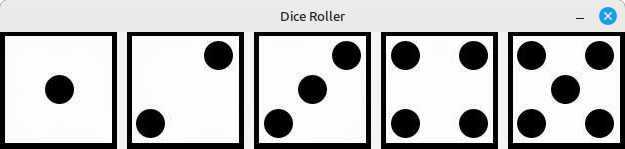
Notes:
-
Section 6.4.1 in the text shows how to create
an Image (which loads an image from a file) for use in
the ImageView. However, the example is not quite
correct — the Image constructor requires the URL
of the image to load so you will need to prepend "file:" to the
filename e.g. use file:images/classic/1.png for the
file 1.png in the classic folder within
the images folder of your project.
-
You will need both the dice Images and
the ImageViews created to display them later, so make
private instance variables to hold them instead of local
variables inside start. Arrays would be a good
idea.
-
You'll likely want to add the ImageViews to
the HBox in a loop, which means adding after
the HBox has been created.
Call getChildren().add(comp) on
the HBox.
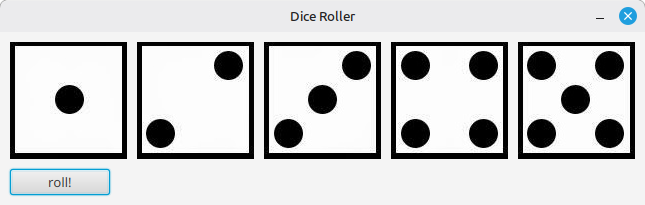
-
Add a roll button below the dice: the new root of the scene
graph will be a VBox containing the HBox with the
dice and the roll button. Put 10 pixels of space between the dice
and the button and 10 pixels of padding around everything.
The result should be as shown:
-
Add event handling — write a private
method rollDice() which rolls five dice (generate five
appropriate random numbers) and updates the ImageViews
with the corresponding images, then register an event handler for the
roll button that calls rollDice().
Now you should have a complete application — clicking on the button
should cause the dice to be rolled.
-
Fine-tune the presentation and layout:
-
Center the roll button (and the row of dice) horizontally.
This is the domain of the container holding the
controls, setAlignment should be called on
the VBox.
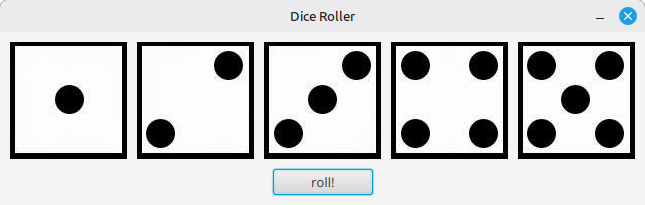
-
Set the background of the whole scene to a color
— say, a nice forest green. See section 6.2.5 (about
CSS) in the text; the root of the scene graph is the node
whose background you want to set.
(CSS
color names — scroll down)
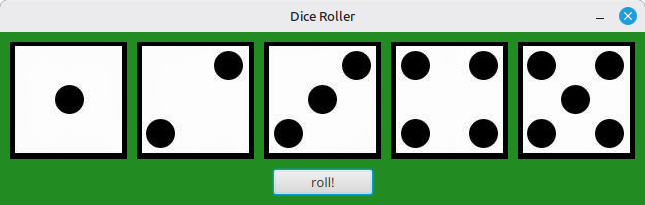
The dice roller works, but the user has no control over what is
rolled. The next steps add additional controls.
Put them in a VBox of their own below
the roll button. Use an HBox for each row of controls, and
give every control a Label as its caption.
-
Number of dice. Add a Spinner<Integer>,
captioned "Number of dice:", that allows 1 to 5 dice and starts at 5.
(Use the Spinner constructor that takes the minimum,
maximum, and initial values.) A spinner is the right control here
because the valid values are a small range of whole numbers, so the
user can't enter anything invalid.
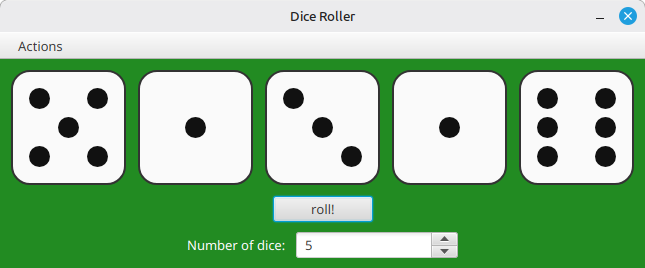
Read the spinner's value when the user rolls (in rollDice()),
not every time it changes. Roll only that many dice, and show only
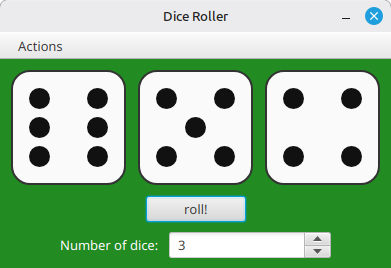
that many: dice that aren't in play should disappear, and the
remaining dice should close up the gap.
-
setVisible(false) hides a node but leaves its
space in the layout. To also remove the space,
call setManaged(false). Remember to make dice visible
and managed again when the number goes back up.
-
Call sizeToScene() on the stage to actually
resize the window.
-
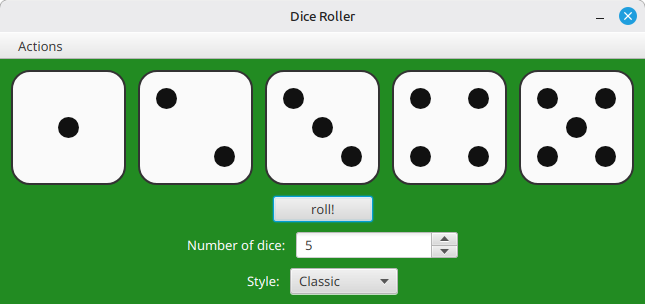
Die style. Add a ComboBox<String>,
captioned "Style:", offering the die styles "Classic", "Red", and
"Numerals". The images for each style are in a subdirectory
of images (images/classic, images/red,
images/numerals), and each one contains 1.png
through 6.png. Section 13.3.3 in the text has information
about ComboBox.
-
Fill the combo box from an array of style names, and select
"Classic" initially so that there is always a selection.
-
Keep a second array, in the same order, of the directory
names. Use getSelectionModel().getSelectedIndex() to look
up the directory for the selected style.
-
Changing the style should redraw the current dice in the new
style immediately, without rolling them. Use the combo box's
setOnAction handler for this. To redraw without rolling,
keep the current values of the dice in an instance variable (an
int array). It will be useful in later steps too.
-
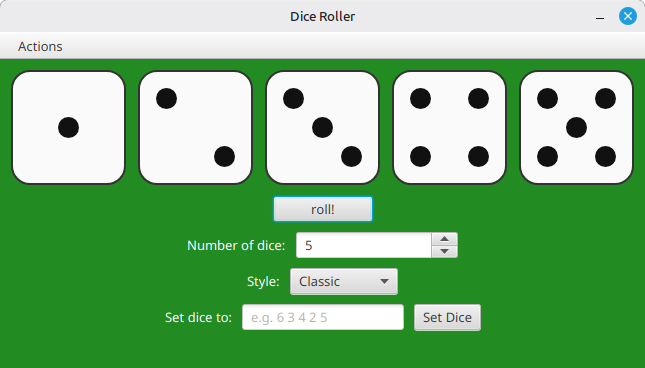
Setting the dice. Sometimes it's handy to set the dice
to particular values, for example to replay a position. Add
a TextField captioned "Set dice to:", a "Set Dice" button,
and an empty Label under the text field for error
messages. Give the text field the prompt text e.g. 6 3 4 2 5.
(Prompt text is only a hint that disappears when the user starts
typing, so the field still needs its caption.)
-
The user types the values separated by (single) spaces.
Assume initially that the user has entered valid input.
When the user clicks Set Dice or presses Enter in the
text field (the text field's own setOnAction), read
the text, use String's split to split by a
space, set the dice to those values, update the images, and
clear the error label.
-
Add validation of the input as a second step:
- there must be exactly as many values as the number of dice
currently selected in the spinner
- every value must be a whole number from 1 to 6
- extra spaces before, after, or between the values are fine
If the text is valid, set the dice to those values (etc).
If it isn't, put a specific
message in the error label that says what is wrong and gives an
example, such as "Enter 5 values, e.g. 6 3 4 2 5" or "7 is not a
die value — use 1 to 6". Then move the keyboard focus back to the
text field with requestFocus(). Don't change the dice
when the input is invalid.
Now finish up the application:
-
Add a menu (section 6.6.2) titled "Actions" which has
three items: "Roll Dice", a separator, and "Quit". Choosing "Roll
Dice" should roll the dice and choosing "Quit" should exit the
program. (Platform.exit() is the preferred way to exit a
JavaFX application, rather than that System.exit(0).)
Menubars typically go at the top of the window: make the root of the
scene graph a BorderPane (section 6.5.2) with the menubar
in the top region, the VBox with the dice and roll button
in the center region, and the VBox with the other controls
in the bottom region. (Note that the example picture doesn't show
the other controls.)
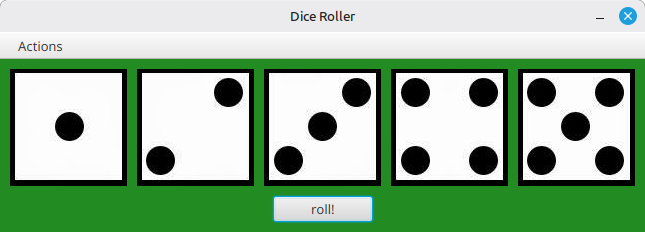
-
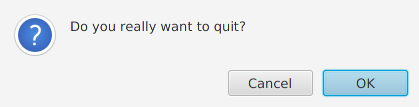
Add the modal confirmation dialog (section 13.4.1) shown
to confirm that the user really wants to quit — the application
should only exit if the user chooses "OK".
-
Keyboard shortcuts.
-
Make the roll button the default button
(setDefaultButton(true)) so that pressing Enter anywhere in
the window rolls the dice. Try pressing Enter in the "Set dice to"
field: because that field has its own onAction handler,
Enter there sets the dice instead of rolling them.
-
Add a "Clear" button next to Set Dice that empties the text
field and the error label, and make it the cancel button
(setCancelButton(true)) so that pressing Esc clears the
entry.
-
Rerolling one die. Add an item "Reroll One Die..." to
the Actions menu. It should show a ChoiceDialog<String>
that asks which die to reroll and offers one choice per die in play
("Die 1", "Die 2", ...). Build the list of choices when the menu item
is chosen, since the number of dice may have changed. If the user
picks a die and clicks OK, reroll just that die. If the user cancels
or closes the dialog, do nothing.